Writing
From Chaos to Clarity: Streamlining Your Dev Environment for Maximum Productivity


Milad Ezzat
@miladezzat12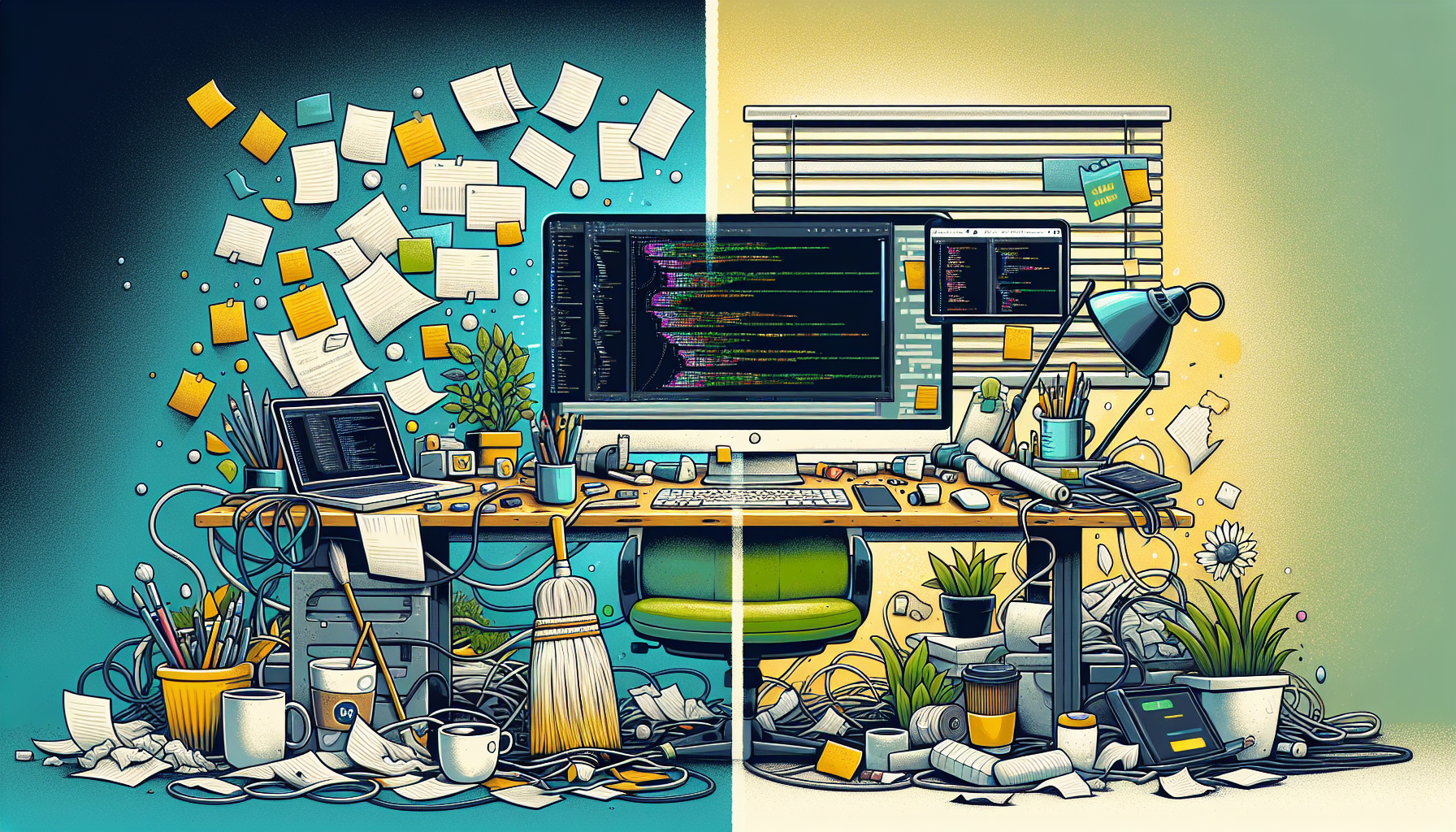
The journey from chaos to clarity in a development environment is akin to transforming a wild garden into a Zen sanctuary. As developers, our workspace—both virtual and physical—can significantly influence our productivity and creativity. I've learned through trials and countless errors that a streamlined development environment is not just about aesthetics; it's about setting the stage for our best work.
The Impact of a Streamlined Development Environment on Productivity
Imagine stepping into a workspace where every tool is in its rightful place, where distractions are minimized, and where every process is optimized for efficiency. This is the essence of a streamlined development environment. It's not just about speed; it's about creating a space where focus, creativity, and productivity flourish.
Identifying and Eliminating Distractions in Your Dev Setup
The first step toward clarity is identifying distractions. For me, Milad, it was the constant notifications and the clutter of unused applications and files. By streamlining notifications to only what's essential and decluttering my workspace, I regained countless hours of focused development time.
- Action Step: Assess your digital and physical workspace. Eliminate or minimize non-essential notifications and declutter your workspace to keep only what you need.
Leveraging VS Code Extensions for Smarter Workflow
Visual Studio Code, with its rich ecosystem of extensions, has been a game-changer for me. Extensions like Prettier for code formatting and GitLens for enhanced Git insights have automated what used to be manual, error-prone tasks.
// Before Prettier, formatting was manual and inconsistent
function badlyFormatted(param) {
  console.log(param)
}
// After Prettier, code is automatically formatted
function wellFormatted(param) {
  console.log(param)
}
- Action Step: Explore and integrate VS Code extensions that align with your workflow. Focus on those that automate mundane tasks and enhance code quality.
Automating Your Way to Efficiency: Scripts and Tools That Save Time
Automation is the cornerstone of a productive development environment. I've harnessed the power of Node.js scripts to automate routine tasks, from setting up new projects to deploying code. Here's a simple script to automate project setup:
const fs = require('fs')
const { exec } = require('child_process')

// Create a new project directory with the option to avoid errors if it already exists
fs.mkdirSync('MyNewProject', { recursive: true })

// Initialize a new npm project in the newly created directory
exec('npm init -y', { cwd: './MyNewProject' }, (error, stdout, stderr) => {
  if (error) {
    console.error(`exec error: ${error}`)
    return
  }
  console.log(`stdout: ${stdout}`)
  if (stderr) {
    console.log(`stderr: ${stderr}`)
  }
})
- Action Step: Identify repetitive tasks in your workflow and explore how scripts or tools can automate them. Start with simple automation and gradually build complexity as you identify more opportunities.
Mastering Terminal Shortcuts and Commands for Lightning-Fast Navigation
The terminal is a powerful ally, and mastering its shortcuts and commands can significantly speed up your workflow. Simple commands like cd, ls, and mkdir can be combined with aliases and functions in your .bashrc or .zshrc file to create powerful shortcuts.
- Action Step: Learn and customize terminal commands and shortcuts. Create aliases for your most-used commands to save time and increase efficiency.
Organizing Projects Like a Pro: Tips for Efficient File and Folder Structures
A well-organized project is easy to navigate and understand. I follow a modular structure, keeping related files together and separating concerns clearly. For instance, separating UI components, services, and utilities into their folders makes it easier to manage large projects.
- Action Step: Evaluate your current project structures and adjust them to enhance clarity and navigability. Adopt or create a naming convention for files and folders to maintain consistency.
The Art of Documentation: Quick Tips for Keeping Your Projects Understandable
Good documentation is like a map—it guides the reader through your project, making it accessible and understandable. I make it a habit to document as I code, ensuring that every function, class, or module has a clear, concise comment explaining its purpose and usage.
/**
 * Calculates and returns the sum of two numbers
 * @param {number} a - The first number
 * @param {number} b - The second number
 * @returns {number} The sum of the two numbers
 */
function sum(a, b) {
  return a + b
}
- Action Step: Incorporate documentation into your development process. Use comments to explain the "why" behind complex logic or decisions, and ensure your code is self-explanatory whenever possible.
Conclusion: Cultivating a Habit of Continuous Improvement in Your Dev Environment
Transforming your development environment from chaos to clarity is not a one-time task but a continuous journey. It requires regular reflection, willingness to experiment, and the discipline to maintain order. By embracing the strategies discussed—from eliminating distractions and leveraging tools to automating tasks and mastering shortcuts—you can create a development environment that not only boosts your productivity but also becomes a source of joy and inspiration in your coding journey.
Remember, the goal is not to create a rigid structure that stifles creativity but to design a flexible, efficient workspace that adapts to your evolving needs as a developer. Let's embark on this journey of continuous improvement, transforming our development environments into sanctuaries of productivity and creativity.